Posts

FOR ALL AIRTEL USERS

Requirements: 1. Airtel live (available 4 free) 2. Nokia series60 handset eg 6600,6630,n series,7610,6670 etc 3. Opera wap browser 4 mobile Procedure:- 1. Go to ur connection settings and make a new internet profile using the default settings of airtel live.  name that new profile as nething(for eg masala); change the home page of that profile to nething u like for  eg www.google.com. 2. Go to ur Opera browser and set the default connection as AIRTEL LIVE. this is the original settings u received  thru airtel. 3. Go to the services(in n6600) and Web(N6630) and change the default profile for connection as masala (newer one). **Note: always make sure that ur access point is airtelfun.com Apply:- 1. Open Opera and u will see that homepage of Airtel Live is opened. Minimize the application. 2. Now open web using the duplicate Profile and u will see that two gprs connections will work simultaneously  and at the web or the services page it will show "Unable to connect" or...
BSNL HACK FOR INTERNET FREE

Logic: the server has a major bug in it, by which it fails to block two simultaneous connections  from the phone and establishes a connection with full internet working, Supported devices: all phones with multichannel gprs support For connection on your mobile phone:- 1) Make two connections like bsnlportal and BSNLPORTAL1 (names of profile don’t matter, u can keep one as billgates and shahrukhkhan lol.. the basic purpose of names is to enable the user to differentiate between the two accounts,) 2) Select the application you got to have the full connection working on. Surpassingly “web” now just select “bsnlportal” profile and select a link like wap.cellone.in the page will get open,  just press the red button such that the “web” application goes in the background. Make sure that the gprs connection is still established with the web app.  Two parallel lines on the top left of the screen will confirm this 3) Now open any other app that requires web connection like opera....

FIREFOX HACKS

This next group of hacks all relate to the network.http group in about:config. Basically these various options open up your network connection to Firefox, permitting it to access information online as quickly as your connection will permit you. Since the majority of readers utilize broadband connections, this will benefit you, but people using dial up modems (56k) this is not going to benefit you much, sorry. To implement these hacks, perform the following steps. 1. With Firefox up and running, type about:config and hit enter. 2a. Find the entry called “network.http.pipelining” and set it to “true”. 2b. Find the entry called “network.http.proxy.pipelining” and set it to “true”. 2c. Find the entry called “network.http.pipelining.maxrequests” and set it to 16-32, but beware, if set too high you may risk banning yourself from various servers by being mistaken for a DoS attack. 3. Restart your browser. Result:With these options enabled, webpages load faster, pictures in particular. When I...

LOCK YOUR DRIVES AND FOLDERS

here are plenty of software which locks drives and folder to protect your confidential data. Why waste money on such tools when you can do it with a simple registry tweak? Here’s how: Caution: Before you attempt these tweaks, please make sure that you have a backup of your registry, just incase something goes wrong in the middle. Locking Folders: Consider you want to lock a folder named XXXX in your E:\, whose path is E:\XXXX. Now open the Notepad and type the following ren xxxx xxxx.{21EC2020-3AEA-1069-A2DD-08002B30309D} Where xxxx is your folder name. Save the text file as loc.bat in the same drive. Open another new notepad text file and type the following ren xxxx.{21EC2020-3AEA-1069-A2DD-08002B30309D} xxxx Save the text file as key.bat in the same drive. Steps to lock the folder: To lock the xxxx folder, simply click the loc.bat and it will transform into control panel icon which is inaccessible. To unlock the folder click the key.bat file. Thus the folder will be unlocked and the...

OPHCRACK - WINDOWS PASSWORD CRACKER

What is Ophcrack? Ophcrack is a free Windows password cracker based on rainbow tables. It is a very efficient implementation of rainbow tables done by the inventors of the method. It comes with a Graphical User Interface and runs on multiple platforms. Features: * » Runs on Windows, Linux/Unix, Mac OS X, ... * » Cracks LM and NTLM hashes. * » Free tables available for Windows XP and Vista. * » Brute-force module for simple passwords. * » LiveCD available to simplify the cracking. * » Loads hashes from encrypted SAM recovered from a Windows partition, Vista included. * » Free and open source software (GPL). Latest Release:  Ophcrack 3.1.0 Download: Code: http://ophcrack.sourceforge.net/download.php?type=ophcrack

AUTOTUNING - VISTA

Image
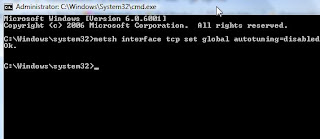
This is case where the cutting edge technological advances being enabled on Microsoft’s operating system by default is a recipe for disaster for users who have older networks and older network devices (specifically older routers). Vista comes installed and enabled with something called “Receive Window Auto-Tuning.” On advanced networks, it’s actually a pretty cool technology where the transfer of data is monitored and Vista automatically “tunes” the TCP window field to optimize packet transfer. Older routers simply do not “play nice” when it comes to that kind of window resizing. This spells trouble for home users who don’t know the difference between a packet of data and a packet of sugar. What was Microsoft thinking? Luckily – there’s a way for you, the home user, to turn this default feature off as well. First, click on “Start” and type “cmd” and right-click on the command icon. You’ll see the following window. Click on “Run as Administrator.” Then, in the command box, type “netsh ...

TAKE BACK YOUR BANDWIDTHM - VISTA

Image
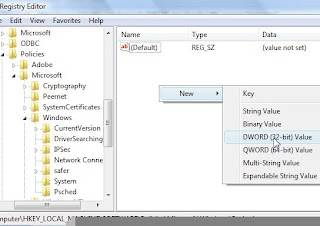
nother unnecessary default setting that Vista (and actually XP as well) comes with is a 20% “reserve” of your available bandwidth in order to accommodate certain applications like Windows Update. This tweak is a pretty common one most old-school users of XP already know – it’s not at all detrimental and you can immediately gain 20% of your bandwidth back, increasing Internet performance significantly. This is called the QoS Reserve Bandwidth Limit, and to reduce this on any version of Vista you need to edit the registry. Go to Start and type “regedit“. You may have to deal with the UAC, unless you’ve read Sharninder’s advice on how to speed up your Vista by turning it off! In Regedit, navigate to “HKEY_LOCAL_MACHINE\SOFTWARE\Policies\Microsoft\Windows” Right-click on Windows and create a new key called “Psched“, then right click on the right and create a new “DWORD” entry. Name it “NonBestEffortLimit” and set the value to zero to disable reserve bandwidth.